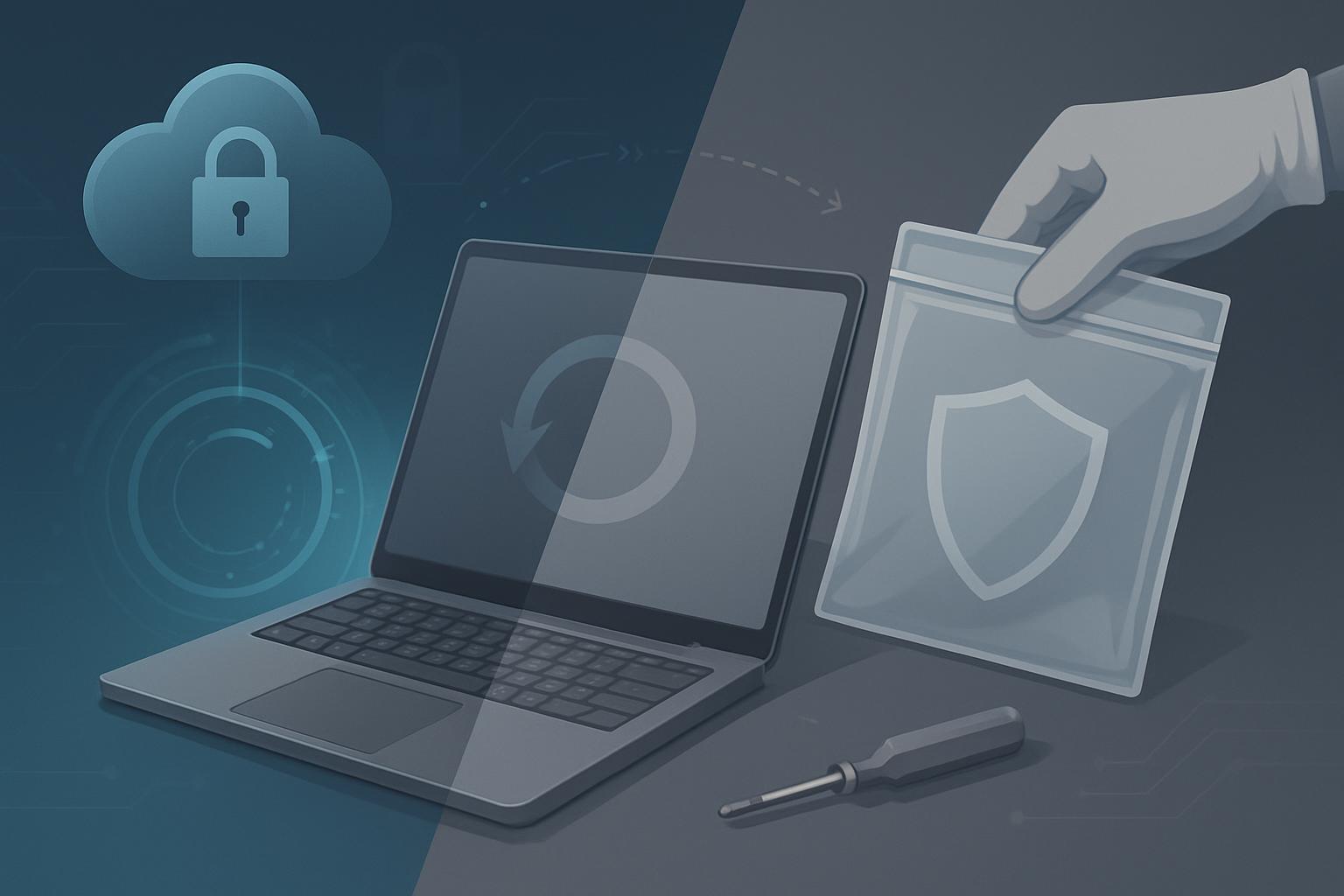
For Google Admin wipe vs Powerwash CUI repair, use a Google Admin console remote wipe as the preferred method when the managed Chromebook is online and still under your control; use a local Powerwash when remote wipe is unavailable, documenting the physical reset before the device leaves. Either method can support NIST SP 800-171 Rev. 2 and CMMC 2.0 Level 2 practice MA.L2-3.7.3 only when you also verify the device contains no removable media, record custody, and retain evidence that the reset occurred before off-site maintenance.
What is the 80/20 of MA.L2-3.7.3 for a one-to-three-person team?
The 80/20 answer is simple: do not let a device containing potentially cached, downloaded, or locally created CUI leave your space until you have reset its local storage and recorded what happened. MA.L2-3.7.3 requires equipment removed for off-site maintenance to be sanitized of CUI. It does not require a small contractor to buy a full enterprise endpoint-management suite just to send a Chromebook for a keyboard or battery repair.
For ChromeOS devices enrolled in Google Workspace, the practical baseline is a factory reset before shipment. ChromeOS encrypts local user data, and a reset removes local profiles, downloads, browser data, offline files, and device settings. In a managed environment, the reset also removes the current local state so the device can be re-enrolled under your organization’s policy when it returns.
Your repair decision should begin with a short question: Could this device have held CUI locally? If the employee used offline Google Drive files, downloaded engineering attachments, saved browser downloads, used Linux development environments, or copied files to USB storage, treat the device as potentially containing CUI. Reset it before it leaves, even if the employee says they “only use the browser.”
- Prefer remote wipe: The Chromebook is online, enrolled, identifiable in Google Admin console, and still with the employee or in your office.
- Use Powerwash: The Chromebook cannot connect, is locked, has an OS issue, or must be reset physically before packing.
- Stop and escalate: The device has a removable SSD, USB drive, SD card, external hard drive, or non-ChromeOS storage that may contain CUI.
- Do not ship first and “wipe later”: A repair vendor is off-site maintenance. Sanitization must happen before custody leaves the organization.
NIST SP 800-88 Rev. 1 distinguishes clearing, purging, and destruction based on the media and sensitivity. For a standard managed Chromebook undergoing normal depot repair, a documented factory reset is usually a practical clearing approach when your system security plan and media-sanitization procedure define it as the approved method. If a device has failed storage, is being disposed of, or cannot complete a reset, use a qualified destruction or media-sanitization provider instead.
How does Google Admin wipe vs Powerwash CUI repair work in practice?
The difference is less about the final user experience and more about control and evidence. Both actions reset a Chromebook, but the Google Admin console gives a sole administrator a remote command trail, while Powerwash requires stronger manual documentation.
| Method | Best use | What the admin does | Evidence to retain |
|---|---|---|---|
| Google Admin console remote wipe | Device is online and managed | Locate the ChromeOS device by serial number, select the wipe action, and confirm command completion or next check-in. | Admin-console screenshot or export, serial number, date/time, technician, repair ticket, and shipment record. |
| Local Powerwash | Device is offline, unstable, or physically in hand | Run Powerwash from ChromeOS Settings or the recovery/reset workflow, then confirm the device reaches the enrollment or welcome screen. | Technician attestation, photo of enrollment/welcome screen if allowed, serial number, repair ticket, and custody log. |
| Media destruction or specialist sanitization | Failed storage, removable media, disposal, or reset cannot be verified | Remove media where feasible and use an approved vendor or destruction process. | Certificate of sanitization/destruction, chain of custody, media serial number, and vendor receipt. |
A remote wipe is normally the cleaner choice because it can be initiated from Google Admin console and associated with the enrolled device record. Before using it, confirm you selected the correct serial number rather than relying only on an employee name or asset label. A Chromebook may not process the command until it next connects to the internet, so do not hand the device to a courier while the wipe is merely pending.
Powerwash is a valid small-team fallback, not a compliance failure. The weakness is that you must prove the action occurred. Have the employee bring the device to you, or conduct a video-assisted reset if they are remote. Confirm that it returns to the ChromeOS welcome or organization enrollment screen before approving shipment. If you use forced re-enrollment in your ChromeOS management settings, the returned device will be directed back into your managed environment after repair.
Do not confuse deleting a Google Drive file, signing out of Chrome, or removing an employee account with sanitization. Those actions do not establish that downloads, browser cache, offline files, or local application data were removed. The Google Admin wipe and Powerwash comparison matters because each is a complete local-reset action, not merely account cleanup.
What free or low-cost tooling stack is enough?
A sole IT administrator can operate a defensible repair process with tools already included in Google Workspace and a few basic administrative records. The goal is repeatability, not automation for its own sake.
- Google Admin console: ChromeOS device inventory, serial numbers, organizational units, wipe actions, and enrollment controls.
- Google Sheets: A controlled asset register and repair/sanitization log. Limit edit access to the IT administrator and an approved backup.
- Google Forms: A short repair intake form that feeds the log and requires the employee to identify USB media, SD cards, and downloaded files.
- Google Drive: A restricted evidence folder for wipe screenshots, repair vendor receipts, shipping labels, and sanitization certificates.
- Google Groups: A restricted group such as
it-repair-approvers@company.examplefor access to the evidence folder and repair notices. - A low-cost shipping and custody method: Tamper-evident packaging, tracked shipping, and a repair vendor that issues a receiving confirmation.
For example, a 22-person SBIR contractor developing RF sensing prototypes may use Google Workspace, 18 managed Chromebooks, and a small set of Windows engineering workstations. The ChromeOS fleet can follow this lightweight process entirely in Google Admin console and Sheets. The Windows systems should not be forced into the Chromebook procedure; they need an approved Windows reset, secure erase, or specialist sanitization path appropriate to their storage and management tooling.
What should the repair log contain?
Repair Ticket: RPR-2026-041
Asset Tag: CR-014
Device Serial: 5CD3412XYZ
User: J. Rivera
Reason for Repair: Battery will not charge
Potential CUI Stored Locally: Yes - offline Drive enabled
Removable Media Checked: No USB, SD, or external drive present
Sanitization Method: Google Admin console remote wipe
Wipe Initiated: 2026-07-15 09:18 ET
Wipe Verified: 2026-07-15 09:26 ET
Verified By: IT Administrator
Vendor: Manufacturer authorized repair depot
Shipment Tracking: Retained in evidence folder
Return Verification: Re-enrolled and policy applied
Which manual processes will still scale to about 50 employees?
At 50 employees, the process should be standardized, but it can remain manual. You do not need to inspect every endpoint every week. You need a reliable gate that prevents unsanitized equipment from leaving.
- Make IT the shipping approver. Employees may report a repair need, but only IT may authorize an off-site shipment or onsite vendor pickup.
- Use one repair ticket per asset. Track asset tag, serial number, user, reason, local CUI risk, reset method, and custody details in one place.
- Require a removable-media check. USB drives, SD cards, external SSDs, and prototype data-acquisition media are separate media items; a Chromebook Powerwash does not sanitize them.
- Verify reset before transfer. For remote wipe, wait for completion. For Powerwash, verify the welcome or managed enrollment screen.
- Record chain of custody. Record who released the device, carrier tracking, vendor name, and who accepted it when returned.
- Re-enroll and inspect on return. Confirm the device is back in Google Admin console, assigned to the correct organizational unit, receiving policies, and free of any vendor-created accounts.
A 37-person defense R&D firm with two administrative staff and one part-time IT administrator can run this process using a weekly review of the repair log. The IT administrator reviews open repair tickets every Friday, checks that all shipped assets have wipe evidence, and closes tickets only after re-enrollment. That review is not a substitute for sanitization; it is the small-team control that catches missing proof before an assessor does.
When must a small team hire or outsource sanitization?
Outsource when you cannot reliably reset, verify, or physically control the media. This is especially important for failed devices, devices with removable storage, legacy laptops, mobile devices with damaged screens, and systems being retired rather than repaired. Google Workspace can manage ChromeOS workflows, but it cannot sanitize a dead SSD, a disconnected USB drive, or a Windows workstation that has never been managed through an appropriate endpoint tool.
Use a vendor that can identify media by serial number, maintain chain of custody, and provide a certificate describing the sanitization or destruction method. For high-risk or failed media, destruction may be the reasonable choice. Your procedure should state who can approve that decision and where certificates are stored.
How can you prove compliance without enterprise tools?
For MA.L2-3.7.3, an assessor usually needs to see that your written process matches actual behavior. Your evidence should show that equipment leaving for off-site maintenance is identified, sanitized, and tracked—not that you own expensive software.
- A policy or procedure stating that devices are sanitized before off-site maintenance and identifying approved methods for ChromeOS, removable media, and failed devices.
- A current asset inventory with device serial numbers, assigned users, and management status.
- Completed repair records showing Google Admin wipe completion or local Powerwash verification before shipment.
- Chain-of-custody records, shipping tracking, repair receipts, and vendor sanitization certificates where applicable.
- Two or three recent, representative tickets that demonstrate the process worked in practice.
- Evidence that returned Chromebooks are re-enrolled and placed back under the correct Google Workspace policies.
The strongest Google Admin wipe versus Powerwash CUI repair evidence package is modest: a ticket, a device serial number, proof of the reset, proof of transfer, and proof of return. Keep it organized in a restricted Google Drive folder and retain it according to your records-retention policy.
Next step: Create a one-page repair intake form and require its completion before any employee ships a managed device for service.


