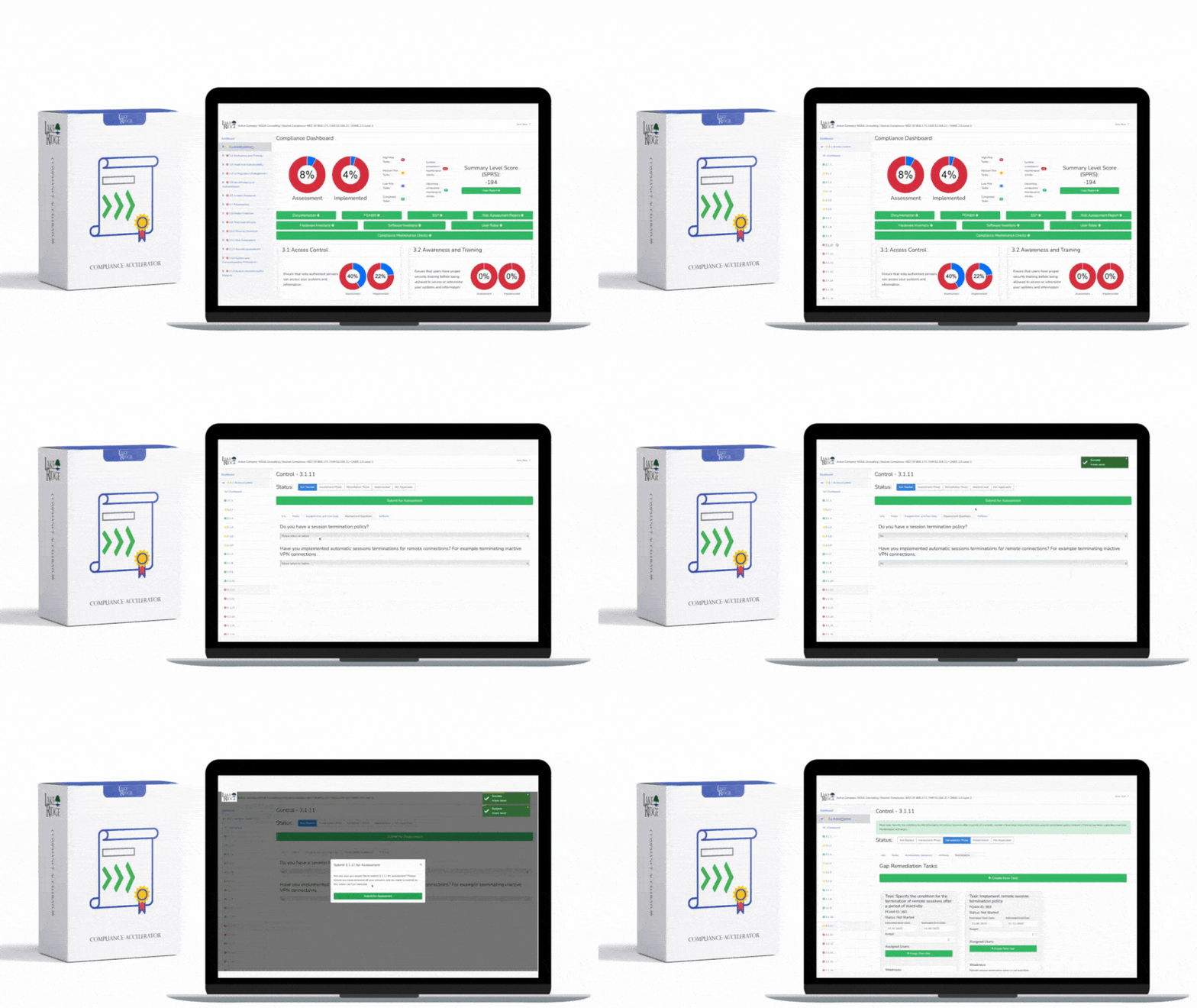
This post gives practical, step-by-step instructions to implement idle session timeouts on Windows and Linux systems to satisfy NIST SP 800-171 Rev.2 / CMMC 2.0 Level 2 Control AC.L2-3.1.11 (automatic termination of user sessions after a defined period of inactivity), including configuration snippets, testing commands, evidence collection, small-business scenarios, and compliance tips.
Understanding AC.L2-3.1.11 and recommended values
AC.L2-3.1.11 requires systems to automatically terminate user sessions after a defined period of inactivity. The control does not mandate a single timeout value, so you must define one appropriate to the sensitivity of the environment and document it in policy. Common, defensible defaults: 15 minutes for interactive/remote administrative sessions (RDP, SSH) and 15–30 minutes for general user interactive sessions; shorter timeouts (e.g., 5–10 minutes) for privileged console sessions can be justified by risk. The key is: pick a value, apply it consistently, document exceptions, and collect evidence of enforcement.
Windows: Domain (GPO) step-by-step implementation
For domain-joined Windows systems, use Group Policy to enforce both interactive workstation lock and Remote Desktop Services (RDS) session limits. Typical settings to configure in a GPO linked to your workstation and server OUs: (a) Computer Configuration → Windows Settings → Security Settings → Local Policies → Security Options → "Interactive logon: Machine inactivity limit" — set value in seconds (e.g., 900 for 15 minutes); (b) User Configuration → Administrative Templates → Control Panel → Personalization → "Screen saver timeout" and "Password protect the screen saver" — enable and set to the same 900 seconds; (c) Computer Configuration → Administrative Templates → Windows Components → Remote Desktop Services → Remote Desktop Session Host → Session Time Limits — enable "Set time limit for active but idle Remote Desktop Services sessions" and choose 15 minutes, and configure "Set time limit for disconnected sessions" as appropriate.
Domain GPO example: create and enforce
Steps: open Group Policy Management (gpmc.msc) → New GPO "IdleTimeout-Workstations" → Edit → apply the three policy groups above, set values, then link the GPO to the OU containing workstations/servers. Force an update for testing with:
gpupdate /force
# On a client to check applied settings:
rsop.msc
secedit /export /cfg C:\temp\secpol.txt
Windows: Local systems, remote session controls, and PowerShell
For standalone Windows machines use Local Group Policy (gpedit.msc) or Local Security Policy (secpol.msc) to set the same policies. For Remote Desktop specifically, you can also use the registry or PowerShell to check and script deployment (but prefer GPO where available). To set a screen saver and a timeout on the local machine via PowerShell for the current user:
Set-ItemProperty -Path 'HKCU:\Control Panel\Desktop' -Name ScreenSaveTimeOut -Value '900'
Set-ItemProperty -Path 'HKCU:\Control Panel\Desktop' -Name ScreenSaverIsSecure -Value '1'
To audit RDP sessions and disconnected sessions use "quser" or "query session" on the server and check Event Viewer > Applications and Services Logs > Microsoft > Windows > TerminalServices-LocalSessionManager for session disconnect/timeout events.
Linux: SSH, shell, and desktop session timeouts
Linux environments require multiple controls: SSH server-side disconnects, shell auto-logout, and GUI session lock for desktops. For SSH (recommended default: 900s / 15 minutes), edit /etc/ssh/sshd_config and add:
# Disconnect after ~15 minutes of inactivity
ClientAliveInterval 300
ClientAliveCountMax 2
With the above, the server will terminate an unresponsive/idle session after ClientAliveInterval * ClientAliveCountMax = 600s (adjust to meet your chosen policy); alternatively, ClientAliveCountMax 0 will drop after the single interval. Restart the service with: systemctl restart sshd (or service sshd restart). Verify effective runtime settings with: sshd -T | egrep 'clientaliveinterval|clientalivecountmax'.
Shell timeouts and GUI lock
For interactive shells set TMOUT centrally so interactive bash sessions auto-logout after inactivity by adding a file /etc/profile.d/timeout.sh with:
#!/bin/sh
# auto-logout interactive shells after 15 minutes unless excluded
[ -z "$PS1" ] && return   # not an interactive shell
# Skip autoplogout for root — change policy if you need it
if [ "$(id -u)" -ne 0 ]; then
  export TMOUT=900
  readonly TMOUT
fi
For GUI desktops (GNOME, KDE), enforce screen lock and lock-delay via dconf/gsettings or local configuration: for example, gsettings set org.gnome.desktop.screensaver lock-delay 0 && gsettings set org.gnome.desktop.session idle-delay 900 (idle-delay is in seconds). Document which systems are configured versus excluded. Note: TMOUT and GUI settings do not affect detached terminal multiplexers (tmux/screen) or system services; address those with session policies or monitoring.
Testing, auditing, evidence collection, and small-business scenarios
Testing: simulate idle sessions (SSH and RDP) and confirm automatic disconnect; capture screenshots of GPO settings, export the GPO, and save sshd_config and /etc/profile.d/timeout.sh with timestamps. Commands to evidence on Linux: cat /etc/ssh/sshd_config; sshd -T | grep clientalive; last, who, and journalctl -u sshd to show disconnect events. For Windows: capture GPO settings via Group Policy Management -> Backup GPO, and export Resultant Set of Policy (rsop.msc) screenshots, and query Security Event Log for event IDs related to session disconnects. Small business scenario: a 12-person engineering firm can enforce a 15-minute timeout for RDP/SSH and 20–30 minutes for standard desktop idle; use a single GPO for domain workstations, and for the handful of Linux dev servers use configuration management (Ansible playbook) to push sshd_config and /etc/profile.d/timeout.sh, and record playbook runs as evidence.
Risks, exceptions, and best practices
Risk of not implementing idle session timeouts: unattended open sessions are a common vector for unauthorized access, lateral movement, and data exfiltration — especially for remote-access and privileged accounts. Best practices: (1) document your timeout policy in the system security plan; (2) use least privilege and shorter timeouts for privileged sessions; (3) maintain an exceptions register with business justification and compensating controls; (4) monitor session disconnect events via SIEM; (5) avoid breaking automated or long-running legitimate processes—use service accounts or job schedulers for automation; (6) collect configuration snapshots, GPO backups, and logs as audit evidence. For small businesses: automate deployments with a lightweight configuration management tool (Ansible, PowerShell DSC) and store screenshots/config diffs and automation runbooks in your compliance folder.
In summary, AC.L2-3.1.11 is straightforward to implement but requires consistent application, documentation, and testing: configure GPOs for Windows (interactive logon + RDP limits), update /etc/ssh/sshd_config and /etc/profile.d/ for Linux, test and collect evidence, and incorporate the settings into policy and exception processes; doing so significantly reduces the risk of unauthorized access and supports NIST SP 800-171 / CMMC 2.0 compliance.