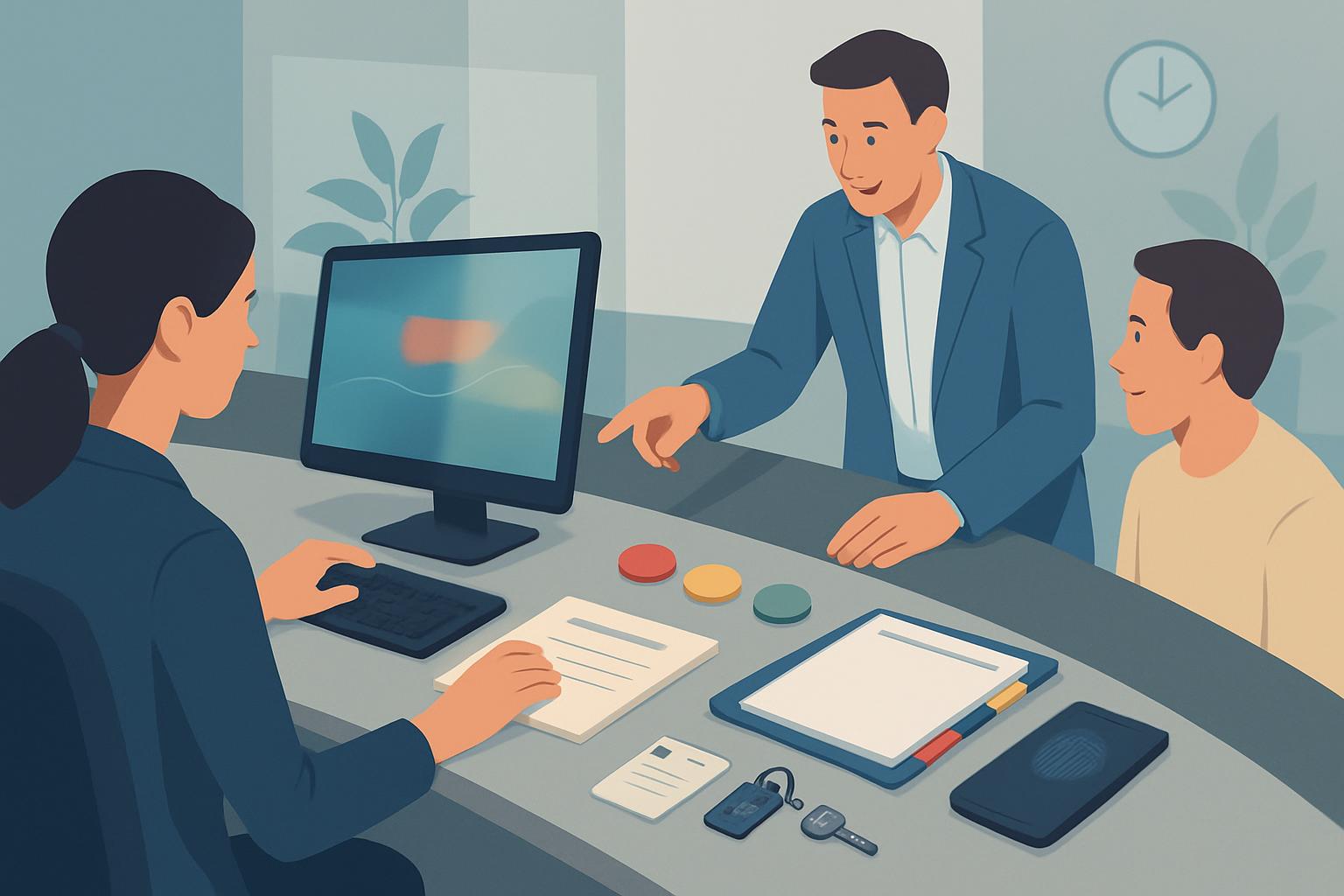
A hipaa workstation tabletop exercise for front desks is a discussion-based drill in which reception staff and managers walk through realistic interruptions, visitor access, screen exposure, paperwork, and device-locking decisions without touching live patient data. It helps a small organization test whether its workstation-use rules meet HIPAA’s practical expectations: staff must know which functions are permitted, how to perform them safely, and how the workstation’s physical surroundings protect electronic protected health information (ePHI).
For an owner without dedicated security staff, the exercise is not a technical penetration test or a legal certification. It is a structured conversation that reveals whether the people who answer phones, check in patients, scan documents, and handle walk-in visitors can follow your policies under ordinary pressure. The relevant HIPAA standard is 45 CFR § 164.310(b), Workstation Use, which requires policies and procedures for the proper functions, manner of use, and physical attributes of workstations that access ePHI.
What objectives should a hipaa workstation tabletop exercise for front desks achieve?
Your exercise should produce observable answers, not vague assurances that staff “know what to do.” By the end, you should know whether front-desk personnel can protect ePHI while continuing essential intake and scheduling work.
- Confirm proper workstation functions: Identify which tasks may be completed at the desk, such as scheduling, eligibility verification, scanning authorized documents, processing payments, and receiving approved portal messages.
- Test the manner of use: Determine whether staff lock screens before stepping away, verify callers before discussing appointments, use individual accounts, avoid shared passwords, and clear paper records promptly.
- Evaluate physical surroundings: Review monitor placement, privacy filters, visitor sightlines, printer location, audible conversations, unattended sign-in sheets, and access behind the reception counter.
- Practice escalation: Make sure staff know when to pause a workflow, move a conversation, call the office manager, or report a possible privacy incident.
- Create evidence of improvement: Record decisions, gaps, owners, due dates, and changes to the written workstation-use policy.
A useful front-desk workstation exercise should focus on behavior. “The computer has a password” is not enough if a logged-in screen remains visible to a visitor, a staff member leaves a printed referral on the counter, or a patient’s family member stands where they can read the next day’s schedule.
What scenario should your front desk team work through?
Harbor Path Counseling is a 17-person behavioral and mental health practice with nine clinicians, two front-desk coordinators, a billing specialist, an office manager, and several part-time staff. The practice uses Windows 11 Dell OptiPlex computers at reception, SimplePractice for scheduling and documentation, Microsoft 365 for email, and a Brother multifunction printer in an alcove behind the front desk. The primary reception computer has two monitors: one faces the coordinator and one is angled toward the waiting room. Staff use the desk to check in patients, collect copays, confirm demographics, schedule follow-up appointments, scan insurance cards, and route portal messages to clinicians.
It is Monday at 8:10 a.m., during a busy check-in period. Jordan, a front-desk coordinator, is logged into SimplePractice under an individual account. The right monitor displays the day’s schedule, including patient names, appointment times, clinician names, and appointment types. A new patient arrives early with a parent, while two established patients are seated nearby. One patient is visibly upset and asks Jordan whether a clinician has reviewed a message sent over the weekend.
At the same time, the phone rings. The caller says he is the spouse of a patient and needs to know whether “Maria is there for her appointment.” Jordan recognizes the name because it appears on the schedule. Before Jordan can respond, a delivery driver enters the lobby and asks for a signature. The driver says the package is for the billing specialist and sets it on the counter near a stack of scanned intake forms waiting to be filed. Jordan steps toward the lobby entrance to sign, leaving the reception screen active for less than a minute.
While Jordan is away, the new patient’s parent walks closer to the desk and points at the right-hand monitor, saying, “Is that where we sign in?” Another waiting patient is close enough to see the schedule. The second coordinator is helping someone complete a paper release-of-information form and has not noticed the screen. The caller remains on hold. A clinician then sends a Microsoft Teams message asking Jordan to print a referral document immediately because the clinician is about to leave for an off-site appointment.
The facilitator should stop the narrative here and ask the group to describe what they would do in order, using the actual workstation-use policy rather than idealized answers. The core issue is not whether Jordan intended to expose information. The issue is whether the practice’s physical setup, screen-locking expectation, visitor controls, paper handling, and escalation path work during a realistic cluster of interruptions.
Participants should decide whether Jordan locks the workstation before leaving the desk, whether the schedule monitor needs repositioning or a privacy filter, how the caller is verified, where the delivery driver may stand, how the paper forms are secured, and whether printing the referral can wait until the reception area is controlled. This HIPAA workstation tabletop should also expose ownership questions: who can approve a monitor move, who reports a suspected exposure, and who ensures the corrective action is completed?
What injects and twists should occur at 15, 30, and 45 minutes?
| Time | Inject | Decision the team must make | Evidence to capture |
|---|---|---|---|
| 15 minutes | A waiting-room visitor says they photographed the reception area because they were texting a family member and may have captured the schedule monitor. | Secure the display, preserve relevant facts, notify the office manager, and avoid trying to inspect or delete the visitor’s phone. | Who receives the report, what facts are documented, and how quickly the monitor is shielded or repositioned. |
| 30 minutes | Jordan’s computer locks automatically after 15 minutes, but Jordan has stepped away for a two-minute escort to the restroom area. | State the manual-lock rule and demonstrate the expected action: use Win + L before leaving the workstation. |
Whether the written policy specifies manual locking and whether staff can describe it consistently. |
| 45 minutes | The printer releases a referral containing diagnosis information, but the billing specialist is absent and a patient is standing near the printer alcove. | Decide who retrieves the document, whether printing should be delayed, and how unclaimed documents are handled. | Printer access rule, secure-output procedure, and the person accountable for changing an unsafe setup. |
Do not present the injects as gotcha questions. Give participants enough information to act, then ask them to explain their reasoning. If your policy is silent, record that as a policy gap rather than treating a staff member as the failure.
How do you facilitate the exercise without a security team?
Set aside 60 minutes and appoint three roles: a facilitator, a note taker, and an operations decision-maker. The owner can facilitate, but the office manager may be better positioned to capture workflow details. Include at least one front-desk worker, one clinician, and the person responsible for billing or operations. Do not use real names, live schedules, screenshots, or actual patient records in the discussion.
| Exercise segment | Minutes | Facilitator action |
|---|---|---|
| Scope and rules | 0–5 | State that the purpose is to improve workflow, not assign blame; review the workstation-use policy and reporting contact. |
| Scenario discussion | 5–15 | Read the narrative, pause at decision points, and ask participants what they would do first. |
| Inject response | 15–50 | Introduce each timed inject, ask for the policy-based response, and record disagreements or missing instructions. |
| Hot wash | 50–60 | Identify the top three changes, assign an owner, and set a realistic completion date. |
What questions should the facilitator ask?
- What information is visible on each monitor, and can a visitor or another patient see it from the waiting area?
- When must a staff member manually lock the workstation, even if the automatic screen-lock setting is enabled?
- What identity information must a caller provide before staff confirm an appointment, discuss a message, or transfer a call?
- Where may delivery personnel, family members, vendors, and patients stand while front-desk staff use ePHI systems?
- What is the safe response when a print job contains ePHI but the intended recipient is unavailable?
- Who should receive a report of possible screen viewing, misplaced paperwork, or unauthorized access, and what details should staff document?
- Which issue can be fixed immediately, such as turning a monitor or moving intake forms, and which requires an owner-approved purchase or policy change?
Keep answers tied to real tools and settings. For example, if your Windows 11 devices use a 15-minute inactivity lock through Microsoft Intune, the team should still agree that staff manually lock screens whenever they leave the desk. If SimplePractice remains open after the device unlocks, individual user accounts and prompt reauthentication matter. A workstation-use drill is successful when staff can describe the safe action in plain language and management can prove the policy supports it.
What should a hot-wash debrief template include?
Complete the hot wash immediately after the exercise, while details are fresh. Keep it short enough that an SMB owner will actually revisit it, but specific enough to show what changed after the discussion.
HIPAA Workstation Use Tabletop Hot Wash
Date:
Facilitator:
Participants:
Scenario used:

1. What worked as intended?
- Example: Staff agreed to lock Windows workstations with Win + L before leaving reception.

2. What gaps were identified?
- Example: The schedule monitor is visible from two waiting-room chairs.
- Example: No written procedure identifies who retrieves unclaimed ePHI printouts.

3. Corrective action:
Action:
Owner:
Due date:
How completion will be verified:

4. Policy or training update needed:
- Workstation Use policy section:
- Front-desk script or job aid:
- Physical safeguard needed:

5. Incident follow-up needed?
Yes / No
If yes, report sent to:
Date and time reported:
Review the completed record with your written HIPAA policies, retain it with training or compliance documentation, and schedule a short retest after corrective actions are complete. The goal is not to prove that no risk exists; it is to show that your practice identifies realistic workstation risks and responds in a disciplined, repeatable way.
Next step: Schedule a 60-minute front-desk tabletop this month and use the hot-wash record to assign one physical safeguard, one workflow change, and one policy update.


